Invitations
Nobody can sign up to an instance. Other people join by invitation. The owner or an admin makes an invitation link on the Members page, copies it, and sends it to the person. The instance sends no email.
Invite someone
Section titled “Invite someone”- Open Members from the workspace menu.
- Select Invite. The “Invite someone” dialog opens.
- Enter the person’s email address.
- Choose the role: Admin or Member. Only the owner can invite an admin.
- For a member, choose a preset, the areas, and the projects, as on a member’s page. See Members and roles.
- Select Create invitation link.
- Select Copy the link, and send the link to the person by a private channel.
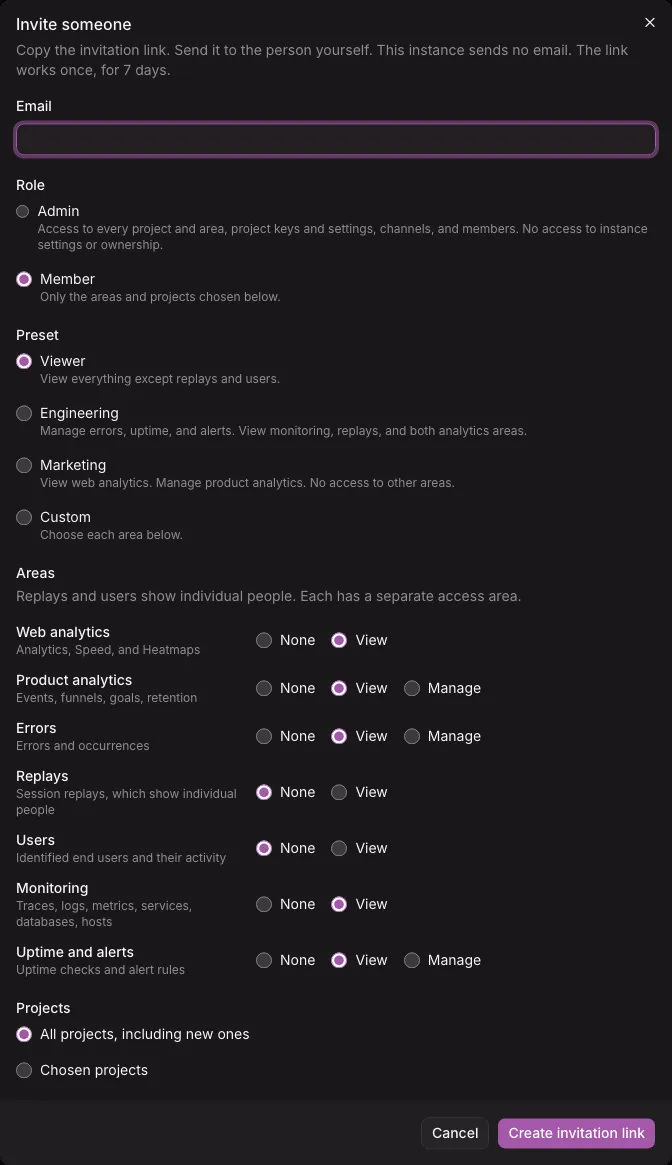
The dialog shows the link only one time. If it is lost, make a new link (below).
The link looks like https://analytics.example.com/invite#token=…. The token is after #, so browsers never send it to a server, and it stays out of request logs. The instance stores only a hash of it.
- The link works one time, for 7 days.
- An email address that already has an account cannot be invited.
- Each email address has one invitation at most. Inviting a pending address again replaces its old invitation, and the old link stops working. An admin cannot replace the owner’s invitation of an admin.
- Email addresses are stored in lower case.
Accept an invitation
Section titled “Accept an invitation”The person opens the link. The page says who invited them, and to which instance. It does not show the role or the access: the person sees those after they sign in.
- Select Accept.
- The email address is fixed. Enter a name, a password of at least 12 characters, and the password again.
- Select Create account.
The instance creates the account and signs the person in. Nothing is saved before this step, so if the person closes the page after Accept, the invitation stays pending, and the link still works.
If the person is already signed in to the instance in that browser, the page asks them to sign out first.
A link that expired, was revoked, or was used gets one message: “This invitation link no longer works. Ask for a new one.” The message says nothing more, on purpose.
When a project was deleted after the invitation was made, the new member’s access leaves it out.
Pending invitations
Section titled “Pending invitations”Pending invitations are listed under Pending invitations on the Members page, with their access and expiry date. Choose one to open its page: its access, who invited the person, when, and when the link expires. An expired invitation shows Expired.
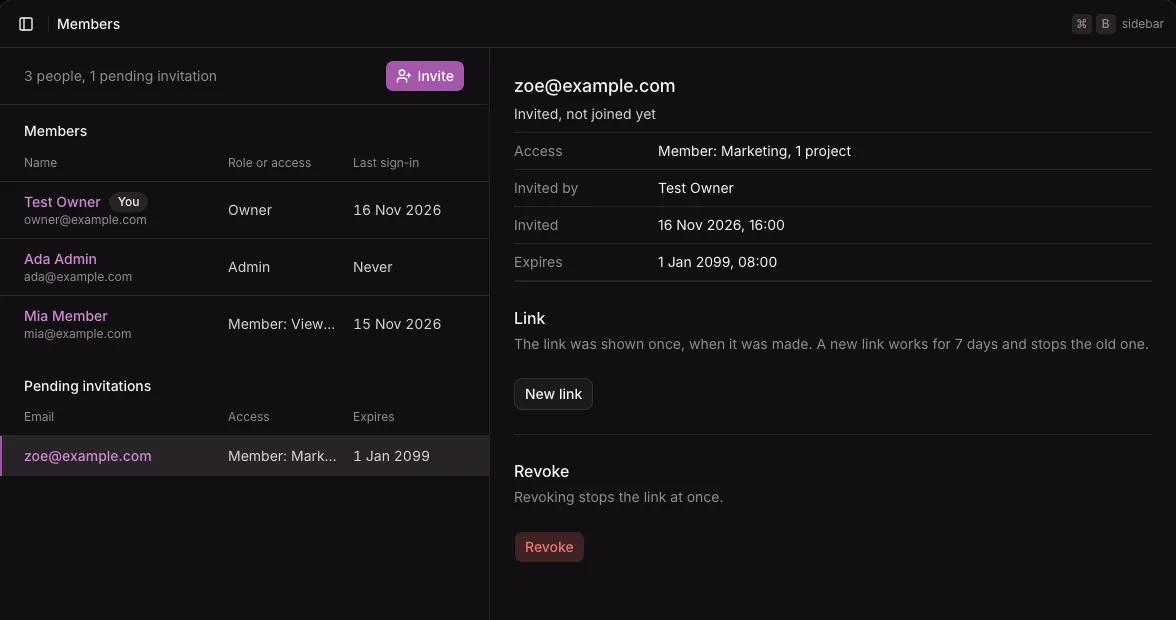
| Action | What it does |
|---|---|
| New link | Makes a new link that works for 7 days, and stops the old one. Use it when a link is lost or expired: the old link cannot be shown again. |
| Revoke | Stops the link at once, and removes the invitation. |
Only the owner renews or revokes an invitation to be an admin.
When an invitation stops by itself
Section titled “When an invitation stops by itself”An invitation never gives more than the person who made it may give:
- When the person who invited is removed, their pending invitations go with them.
- When an admin becomes a member, the invitations they made are revoked.
- When the owner hands over ownership, the old owner’s invitations of admins are revoked.
- When the link is used, the instance checks again that the person who invited may still give that role. If not, the link gets the same message as an expired one.
Limits
Section titled “Limits”- Anyone who sees a link before it is used can use it. Send it by a private channel.
- Accepting an invitation is rate-limited for each client address: 10 requests at once, then one a minute.