The Users page
Open Users in the project’s menu. The page lists the users your site names with data-user-id or identify() (see Name signed-in users). Anonymous visitors are not listed.
The page shows one environment at a time, production by default. The environment picker appears in the filter bar once another environment has known users.
It works like the other list and detail screens: the list on the left, the selected user on the right. See Lists and details.
The list
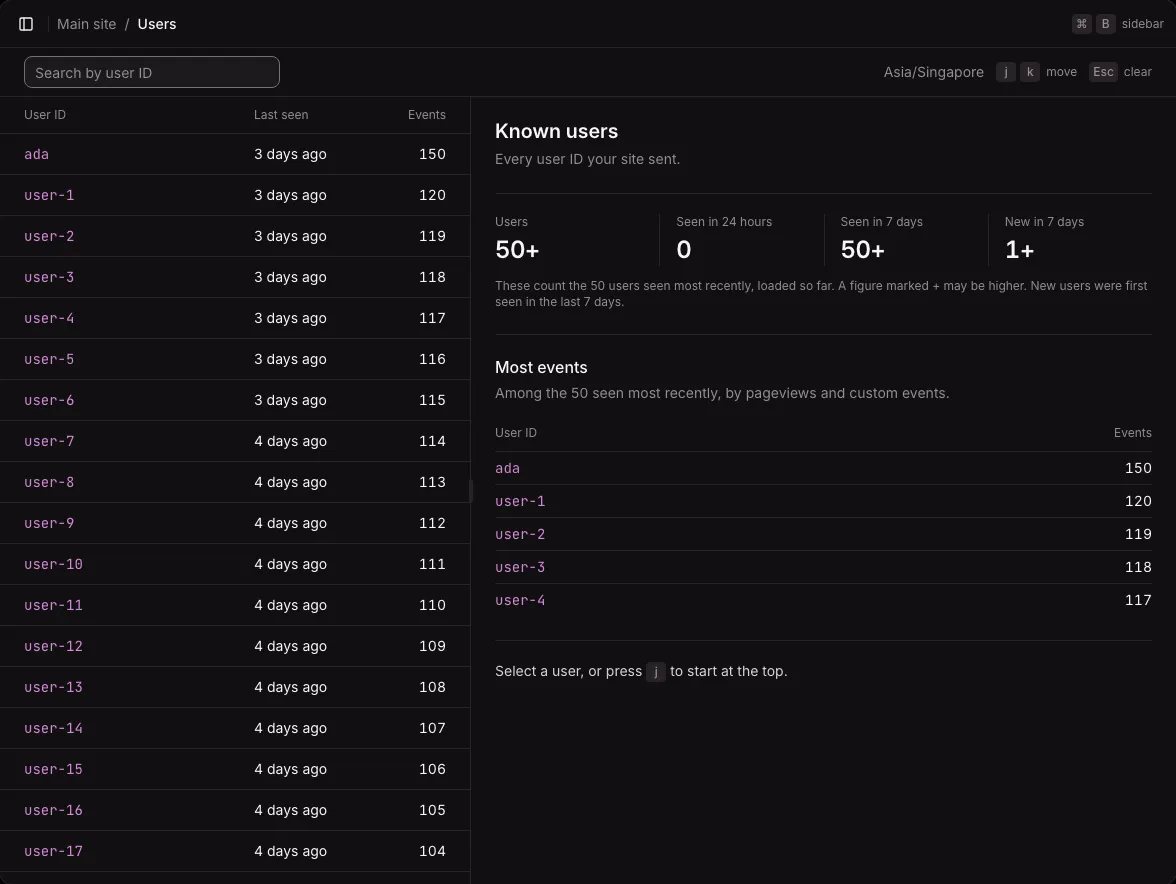
Section titled “The list”The list holds the known users, most recently seen first, 50 at a time. Load more loads the next 50. Each row shows:
- The user ID.
- When the user was last seen. Hover for the exact time.
- How many events the user has.
Search by user ID, in the filter bar, finds users whose ID contains the text you type. Case does not matter.
While your site names no user, the page explains how to add data-user-id and how to call identify() and reset(), with an example to copy.
The summary
Section titled “The summary”When you open the page, nothing is selected, and the right pane sums up the users loaded:
- Users: how many.
- Seen in 24 hours and Seen in 7 days.
- New in 7 days: users first seen in the last 7 days.
- Most events: the five users with the most pageviews and custom events.
While more users wait behind Load more, a figure can be higher than it shows, and it reads as at least that many (such as “50+”).
Select a user
Section titled “Select a user”Click a row to show the user’s page beside the list. The selection goes in the address (?user=…). Open the user’s page opens it on its own.
| Key | Does |
|---|---|
j |
Selects the next user. With nothing selected, the first. |
k |
Selects the previous user. |
Esc |
Clears the selection and shows the summary again. |
A user’s page
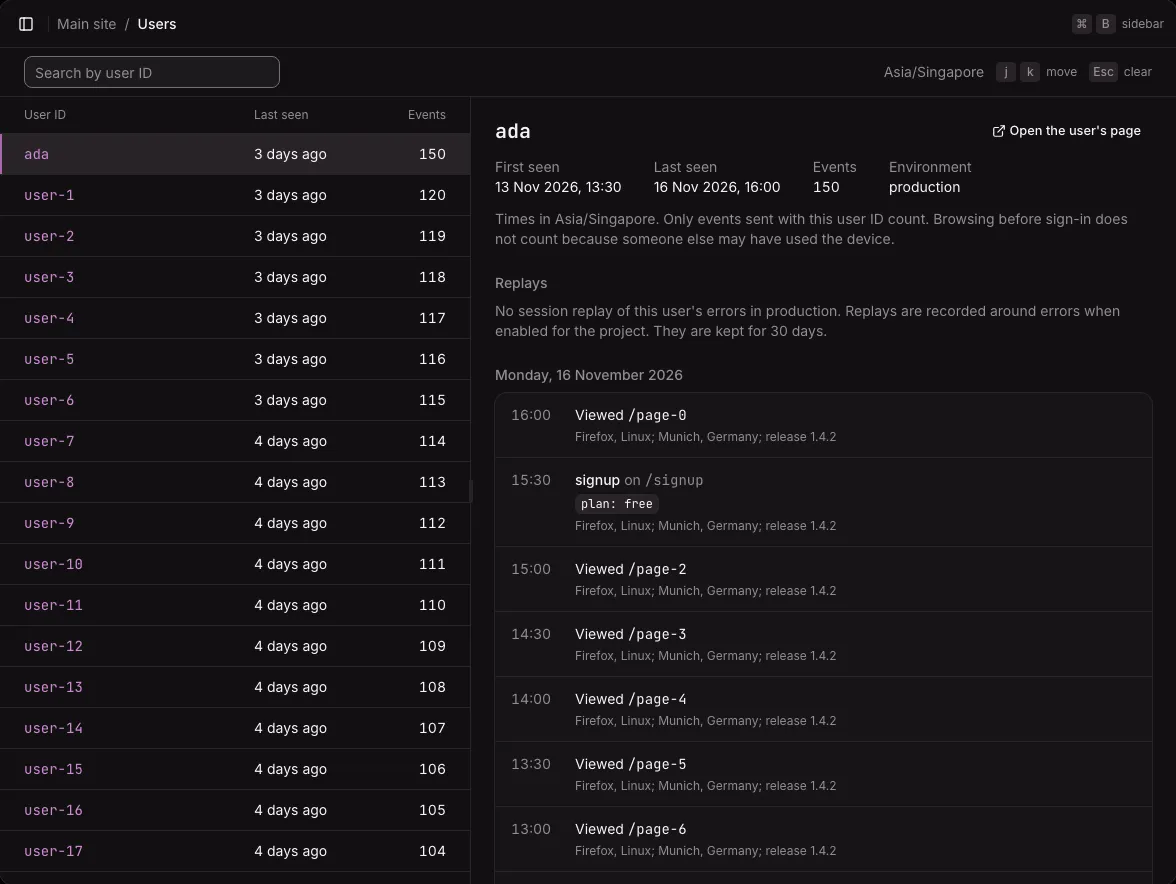
Section titled “A user’s page”A user’s page (/projects/<id>/users/<user ID>) is the same as the pane beside the list. Links to a user open it, and so does a row on a phone. It shows:
- When the user was first and last seen, their number of events, and the environment. Times are in the instance’s timezone.
- Replays: the user’s latest 10 session replays in the environment. Each has its time (a link to the replay’s page), its length, its error’s type, and the pages visited. When there are none, a line says so.
- The user’s activity, newest first, under a heading for each day: pageviews, custom events, and errors, 100 at a time, with Load more.
Each event shows its time, its page or its name and properties, and the browser, operating system, place, and release. An error shows its type and message, with a link to its group on the Errors page. An error with a replay has Play replay, which opens the replay’s page, or “Replay arriving…” while the replay is on its way.
Server-side events and server errors that carry the user’s ID are part of the activity too. See Server-side events and Server errors.
Only events that carry the user’s ID count. Browsing before the user signed in is not added, because someone else may have used the device.
For an ID with no events in the environment, the page says “No events from this user”.
Who sees users
Section titled “Who sees users”User IDs point at real people, so users are an area of their own. The owner and admins see the Users page. A member sees it only with access to the users area. See Members and roles.
- A member without the errors area sees a user’s errors as text, without links.
- A member without the users area still sees user IDs as text on errors and replays, without links to the user’s page.
On a phone
Section titled “On a phone”Under 64rem wide, the list fills the screen and a row opens the user’s own page. See On a phone.
Not available yet
Section titled “Not available yet”- Deleting one user’s events, for a person who asks to be forgotten. Today their events are deleted with the project, or when the project’s retention removes them.
- Details about a user beyond the ID, such as a name or a plan.
- A user’s visits.