Alert rules
An alert rule says what to watch in a project and which notification channels to tell. When what it watches goes wrong, the rule fires: it sends a notification, and sends another when the alert resolves.
Open Alerts in the project’s menu, after Uptime. Viewing rules needs view access to uptime and alerts, and adding, changing, and deleting them needs manage access. A rule on errors also needs view access to errors, and a rule on routes or metrics view access to monitoring (Members and roles). The rules you may not see are left out of your list.
The kinds of rule
Section titled “The kinds of rule”| Kind | Fires when | Resolves when |
|---|---|---|
| Check down | A check (one, or any of the project’s) goes down | It is no longer down |
| Certificate expiring | A check’s certificate expires within the set days (14 by default) | It is renewed |
| New error | An error group is seen for the first time, in the chosen environment | (fires once per group) |
| Regressed error | A resolved error group occurs again | (fires once each time) |
| Error spike | The errors (all, or one group) in the window reach the number set | They stay below it for a whole window |
| Route latency | A route’s, or a whole service’s, 95th or 99th percentile duration is above a value over the window | It stays below for a whole window |
| Route failures | A route’s, or a whole service’s, failed share is above a percentage over the window | It stays below for a whole window |
| Metric | A metric, read as its chart reads it, is above or below a value over the window | It is back on the right side for a whole window |
- Check rules fire as soon as a check changes state.
- Error rules are evaluated every minute, for browser and server errors alike. An alert comes 30 to 90 seconds after the error arrives.
- A New error rule counts a group as new only when no occurrence of it arrived before the rule was added or turned on.
- Route and metric rules are evaluated every minute, from the same numbers as the Services and Metrics pages. Their window ends a minute before each evaluation, since the last minute’s data may not have arrived yet.
The Alerts page
Section titled “The Alerts page”The Alerts page is a list and detail screen: the rules on the left, the selected rule on the right. The j and k keys select the next and previous rule, and Esc clears the selection. The selection is in the address. On a narrow screen, a rule opens its own page. The full description is in Lists and details.
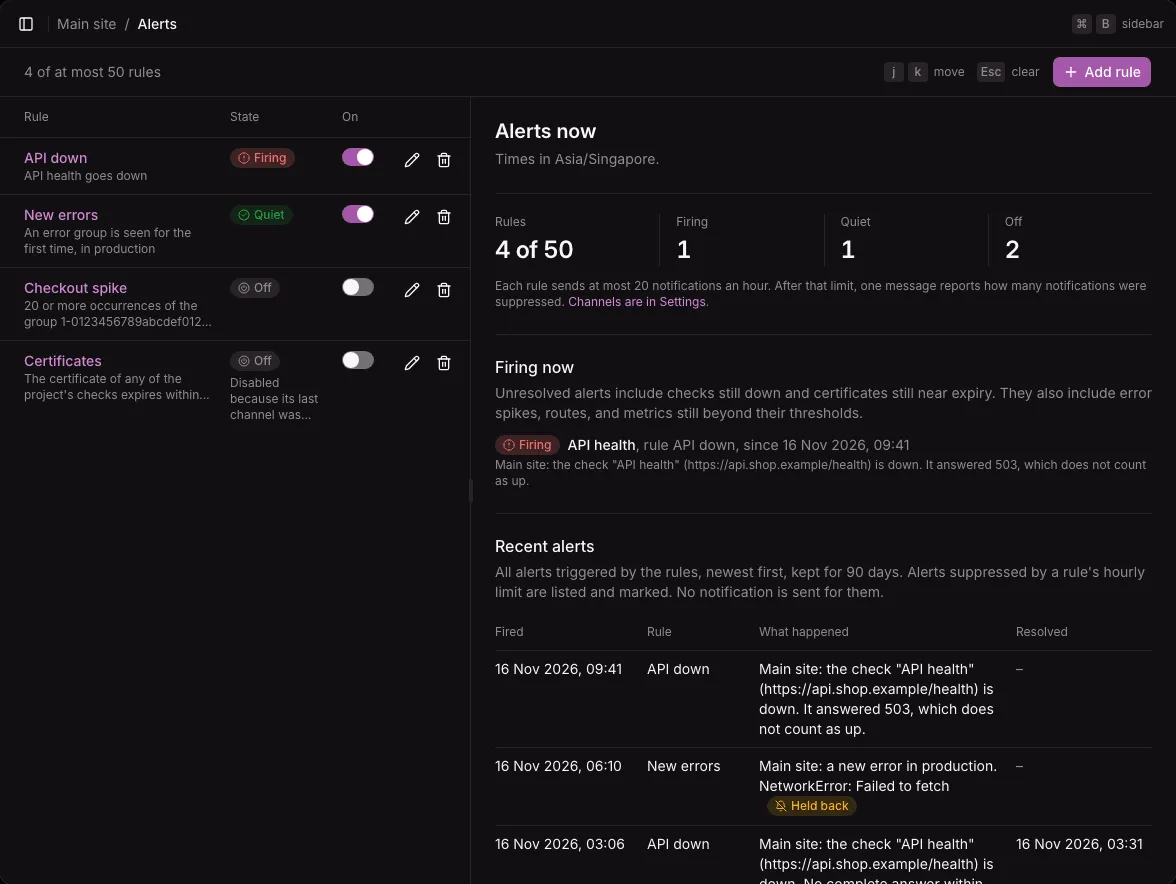
The list holds the project’s rules, oldest first. Each row shows the rule’s name, what it watches in a sentence (such as “API health goes down”), and its state:
| State | Meaning |
|---|---|
| Firing | An alert is open. “Firing for 3” when three subjects fire, such as three checks. |
| Quiet | The rule is on and nothing fires. |
| Off | The rule is turned off. When Ottertrail turned it off, the reason is under the badge, such as its last channel being deleted. |
Each row has a switch that turns the rule off and on at once, and Edit and Delete buttons. The bar above the list says how many rules the project has, of at most 50, with Add rule.
With nothing selected, the right pane, “Alerts now”, counts the rules by state and lists:
- Firing now: every alert not yet resolved, with its subject, its rule, since when, and its message;
- Recent alerts: the project’s alerts, newest first, 20 at a time with “Show older alerts”, each with when it fired, its rule, what happened, and when it resolved.
A rule
Section titled “A rule”The selected rule shows what it watches, its state, its switch, Edit, Delete, and Open the rule’s page. Then its kind, the channels it sends to, when it last fired, why it is off or not evaluated, what it fires for now, and its own alerts, newest first.
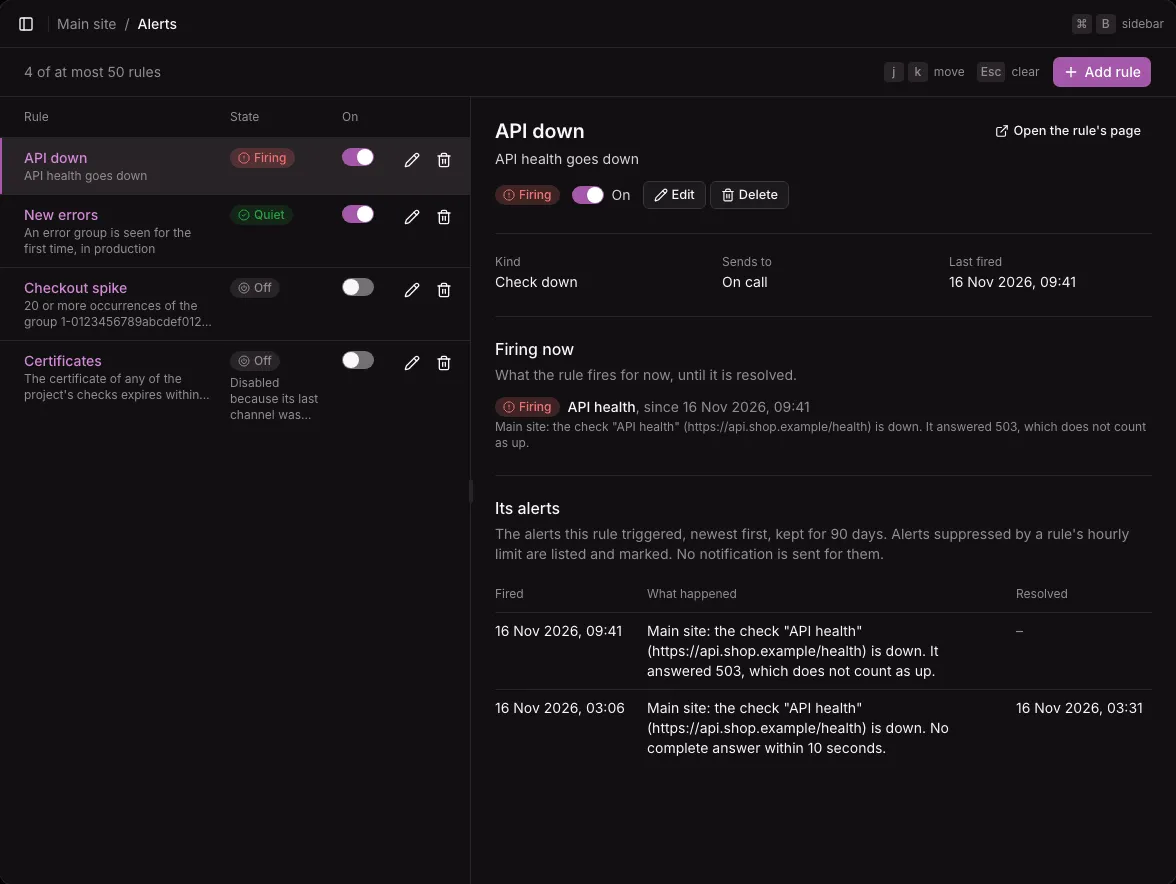
Alerts are kept 90 days. An alert still firing is kept until it resolves.
Add a rule
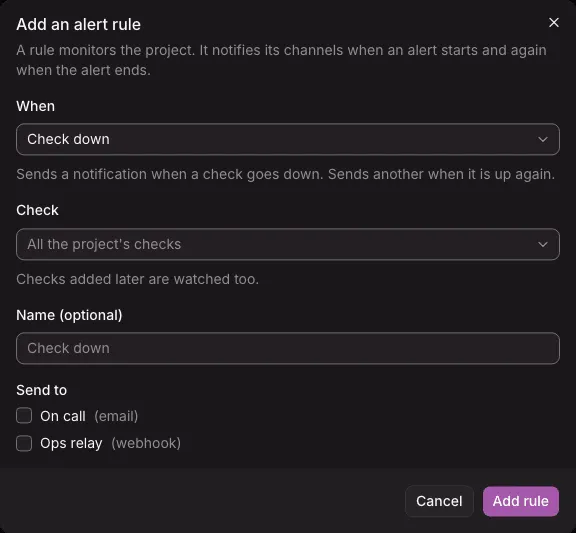
Section titled “Add a rule”- Select Add rule.
- Under When, choose the kind. A sentence under it says what the rule sends.
- Fill in the kind’s own fields (below).
- Under Name (optional), name the rule. It takes the kind’s name when left empty.
- Under Send to, tick one or more channels. With one channel only, it is ticked for you.
- Select Add rule in the dialog.
| Kind | Fields |
|---|---|
| Check down | Check: one check, or “All the project’s checks”, which includes checks added later |
| Certificate expiring | Check, and Days before it expires (1 to 90, 14 by default) |
| New error | Environment (optional): empty for every environment |
| Regressed error | No settings |
| Error spike | Environment (optional), Error group (optional): empty for all errors, Errors: the number that fires (10 by default), and In the last (minutes): 5 to 60 (10 by default) |
| Route latency | Environment (production when empty), Service, Route (optional): empty for the whole service, Percentile (95th or 99th), Above (milliseconds), At least (requests) (20 by default), and the window, 5 to 30 minutes |
| Route failures | The same, with Failed above (percent) in place of the percentile and milliseconds |
| Metric | Environment, Metric, Kind, Read as (a gauge’s average, minimum, or maximum, a counter’s rate per second, an up-down counter’s total, or a histogram’s median, 95th, or 99th percentile), Sends when it is above or below, the value in the metric’s own unit, the window, 5 to 60 minutes, and optionally Host (optional) and Attribute (optional) with its value |
A route’s route is its http.route, or the span’s name when it has none, as on the Services page. A route rule’s window that holds fewer requests than At least (requests) neither fires nor resolves.
The form checks what it can before you save, and shows the instance’s own refusal under the field it is about. Editing a rule uses the same form.
Faster ways in
Section titled “Faster ways in”- On a check’s page, and on an error’s page, an Alert rules card lists the rules that watch it, with Add an alert rule, which opens the form filled in for that check or error group.
- On the Services page, each service and route has a link that opens the form for a route latency rule. A metric’s page has Add an alert rule for a metric rule.
Suggestions, and names that have not reported
Section titled “Suggestions, and names that have not reported”For route and metric rules, the text fields suggest what the project sent: services and their routes of the last day, metrics of the last 7 days, hosts, and a metric’s attribute keys and values. You can type a name that is not suggested, since a rule can be set up before the app is deployed. The page then says that the rule “is saved, and has nothing to watch yet” when nothing with that name arrived in the last 24 hours.
When data is missing
Section titled “When data is missing”A window with no point of the metric, or with fewer requests than the rule’s minimum, has no value. No value never fires, and never counts toward resolving: a firing alert stays firing until values are back on the right side for a whole window. So a route rule whose service stops answering keeps firing.
To be told when requests stop coming, use a metric rule on a counter’s rate, below a value.
When a route or metric rule cannot be evaluated, such as when the instance is too busy, its row says “Not evaluated since …”, and its detail gives the reason, until an evaluation works again.
The limit of 20 notifications an hour
Section titled “The limit of 20 notifications an hour”A rule sends at most 20 notifications an hour, counted from the first. Past that, each further alert is still recorded, and marked Held back in the recent alerts, but sends nothing. When the hour is over, one message says how many were held back, and the count starts again.
Each channel also takes at most 60 deliveries an hour. See Notification channels.
Turn off, change, and delete
Section titled “Turn off, change, and delete”- The switch turns a rule off at once. Turning it off, or changing what it watches, ends its open alerts without a notification. Turned on again, it starts from what is true then: a check still down fires again.
- Ottertrail turns a rule off when the check it watched is deleted, or when its last channel is deleted, and says why under its state. Saving the rule with a check or a channel that exists turns it on again.
- Delete asks first. It stops the rule’s notifications and removes its alerts from the history. To stop a rule for a while, turn it off instead.
Limits
Section titled “Limits”- At most 50 rules per project, each with at most 20 channels.
- Route rules’ windows are at most 30 minutes.
- Not available yet: muting a rule for a while, alerts on matching log lines, alerts on data that stops arriving, rules with more than one condition, and notifications repeated while an alert keeps firing.